
Your photos and files can disappear for many reasons, including a lost device, accidental deletion, hardware failure, theft, or damage caused by water or fire. A backup gives you another copy, so you can recover important files instead of starting from scratch.
The best backup plan does not need to be complicated. With a few reliable storage options and a regular routine, you can protect everything from family photos and schoolwork to tax documents and creative projects.
Start by choosing what to back up
Begin with a quick review of your devices and storage locations. Make a list of the files you would not want to lose.
Common examples include:
– Photos and videos
– Personal documents
– School or work files
– Creative projects
– Address books and calendars
– Saved emails
– Device settings
– Messages or chat histories
– Files stored on external drives or memory cards
You do not necessarily need to back up every temporary download or duplicate file. Removing unnecessary items first can make the backup faster and easier to manage.
Remember to check all the places where your files may be stored. Photos might be on a phone, laptop, camera card, tablet, or social media account. Important documents may be saved in a downloads folder, on a desktop, or in an app-specific folder.
Use more than one backup location
A dependable approach is to keep several copies of your files in different places. One useful method is the 3-2-1 backup rule:
– Keep at least three copies of important files.
– Store them on at least two different types of media.
– Keep at least one copy in a different location.
For example, your original photos could remain on your computer, a second copy could be stored on an external drive, and a third copy could be saved with a cloud storage service.
This approach reduces the chance that one problem will affect every copy. If your computer fails, the external drive may still work. If your home is damaged, an off-site copy may still be available.
Back up to an external drive
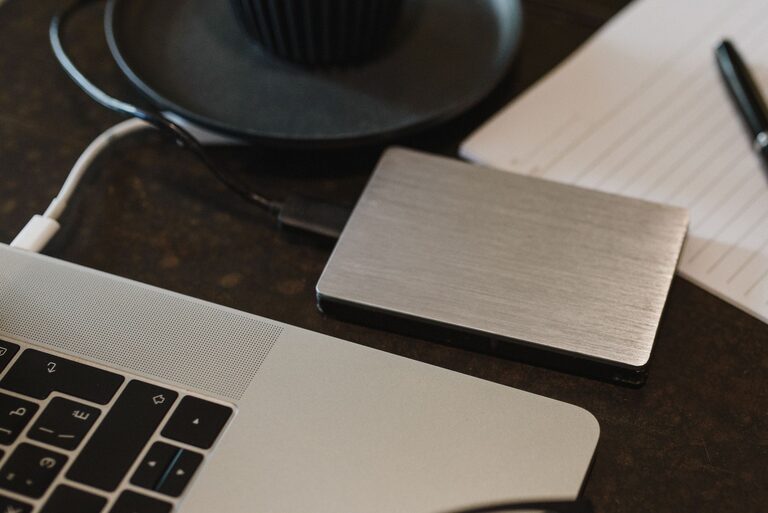
An external hard drive or solid-state drive is a simple way to create a local backup. These drives connect to a computer using a cable and can hold a large collection of photos and files.
When choosing a drive, consider:
– Storage capacity
– Connection type
– Compatibility with your computer
– Portability
– Build quality
– Whether automatic backup software is included
Keep the drive disconnected when it is not being used for backups. This can help protect it from accidental deletion, some types of malware, and power-related problems.
It is also a good idea to store the drive somewhere separate from your computer. A drive beside your laptop will not help much if both are lost or damaged at the same time.
Organise the backup
Use clear folders and consistent file names. For photos, you might organise files by year, event, or location. For documents, you could use folders such as “Home”, “School”, “Work”, and “Projects”.
Avoid relying on a backup filled with confusing file names or duplicate folders. Good organisation makes it easier to find and restore a file when you need it.
Consider cloud storage
Cloud storage keeps copies of files on remote servers that you access through the internet. Many services can automatically back up photos from a phone or synchronise selected folders from a computer.
Cloud storage can be useful because it:
– Keeps a copy away from your home
– Can back up files automatically
– Works across several devices
– Makes sharing easier
– Helps protect files if a device is lost
However, cloud storage and synchronisation are not always the same as a complete backup. If you delete a file from a synchronised folder, the deletion may also appear on other connected devices. Check whether the service offers version history, a recycle bin, or a separate backup feature.
Review the service settings carefully. Make sure the folders you want to protect are included, and check how long deleted files are retained.
Turn on automatic backups
Manual backups are easy to forget. Automatic backups can create a regular copy without requiring you to remember every time.
Many computers include built-in backup tools. Phones may offer automatic photo and device backups through their settings. External drives may also work with backup software that runs on a schedule.
Choose a routine that matches how often your files change:
– Daily for frequently updated documents
– Weekly for regular personal use
– After major projects or events
– Immediately after importing photos from a camera
Automatic backups work best when you check them occasionally. Look for a backup status message, notification, or activity log to confirm that the process is completing successfully.
Protect your accounts and devices
Your backup system should be easy for you to access but difficult for others to misuse. Use strong, unique passwords for cloud storage and related accounts. If available, turn on two-step verification for an additional layer of account protection.
Keep your computer, phone, apps, and backup software up to date. Updates often improve security, compatibility, and reliability.
For sensitive files, consider using encryption. Some devices, drives, and cloud services offer built-in encryption. Follow the provider’s instructions and store recovery keys or passwords in a safe place. A backup that cannot be opened because its password is forgotten is not very useful.
Check that your backups work
A backup is only helpful if you can restore the files. Test your system from time to time by opening a few backed-up photos and documents.
You can also practise restoring:
- Select a small group of files.
- Copy them to a different folder or device.
- Open the files to make sure they are complete.
- Check that file names, dates, and folders are correct.
- Confirm that the restored files can be used normally.
If a file will not open, investigate the problem before relying on that backup. You may need to replace a failing drive, adjust a setting, or create another copy.
Make backups part of your routine
Choose a regular time to review your backup plan. This could be the first weekend of each month or the day after you finish a major project.
During your review:
– Check that automatic backups are running.
– Confirm that the backup drive has enough free space.
– Add new folders or devices.
– Remove unnecessary duplicate files.
– Test a few files.
– Replace old or unreliable storage devices.
– Review account access and recovery details.
Do not wait until your device shows signs of failure. Backing up after a problem has started may be too late.
A simple backup plan
If you are starting from scratch, use this basic plan:
- Gather your important photos and files in clearly named folders.
- Copy them to an external drive.
- Turn on automatic cloud backup for key folders or photos.
- Keep the external drive disconnected and stored separately.
- Test a few files from both backup locations.
- Review the plan regularly and update it as your collection grows.
A few minutes of planning can protect years of memories and important work. The most effective system is one that uses more than one location, runs regularly, and is tested before an emergency occurs.